• BERANDA
  • TENTANG
    • Profil
    • Visi dan Misi
    • Tujuan dan Fungsi
    • Struktur Organisasi
    • Pimpinan Organisasi
    • Program Kerja
  • BERITA
    • Pengumuman
    • Kegiatan
    • Prestasi
  • KERJASAMA
  • LAYANAN & INFORMASI
    • Aplikasi
      • Sistem Informasi Layanan Kemahasiswaan & Alumni (SIKEMAL)
      • Academic Online Campus (AOC)
      • Daftar Ulang
      • Pendaftaran Mahasiswa Baru (PMB)
      • Aplikasi Pembayaran Online
    • Kesejahteraan Mahasiswa
      • Beasiswa
      • Asuransi
      • Pusat Pelayanan Kesehatan
    • Minat Bakat Mahasiswa
      • Pembinaan Prestasi Kemdikbud
      • Fasilitasi Kegiatan Prestasi Non Kemdikbud
    • Karir Mahasiswa
    • Administrasi Kemahasiswaan
      • Daftar Ulang Mahasiswa Lama
      • Cuti Akademik
      • Aktif Kembali Dari Cuti
      • Surat Keterangan Ijazah
      • Legalisir Ijazah
      • Surat Keterangan Keabsahan Ijazah Alumni S1 dan S2
    • Arsip Digital
      • Persyaratan & Prosedur Pelayanan Kemahasiswaan
      • Persyaratan & Prosedur Pelayanan Alumni
      • Formulir dan Format Surat
      • Sertifikat Akreditasi
      • Artikel
    • Help Desk BPIKA
  • PMB
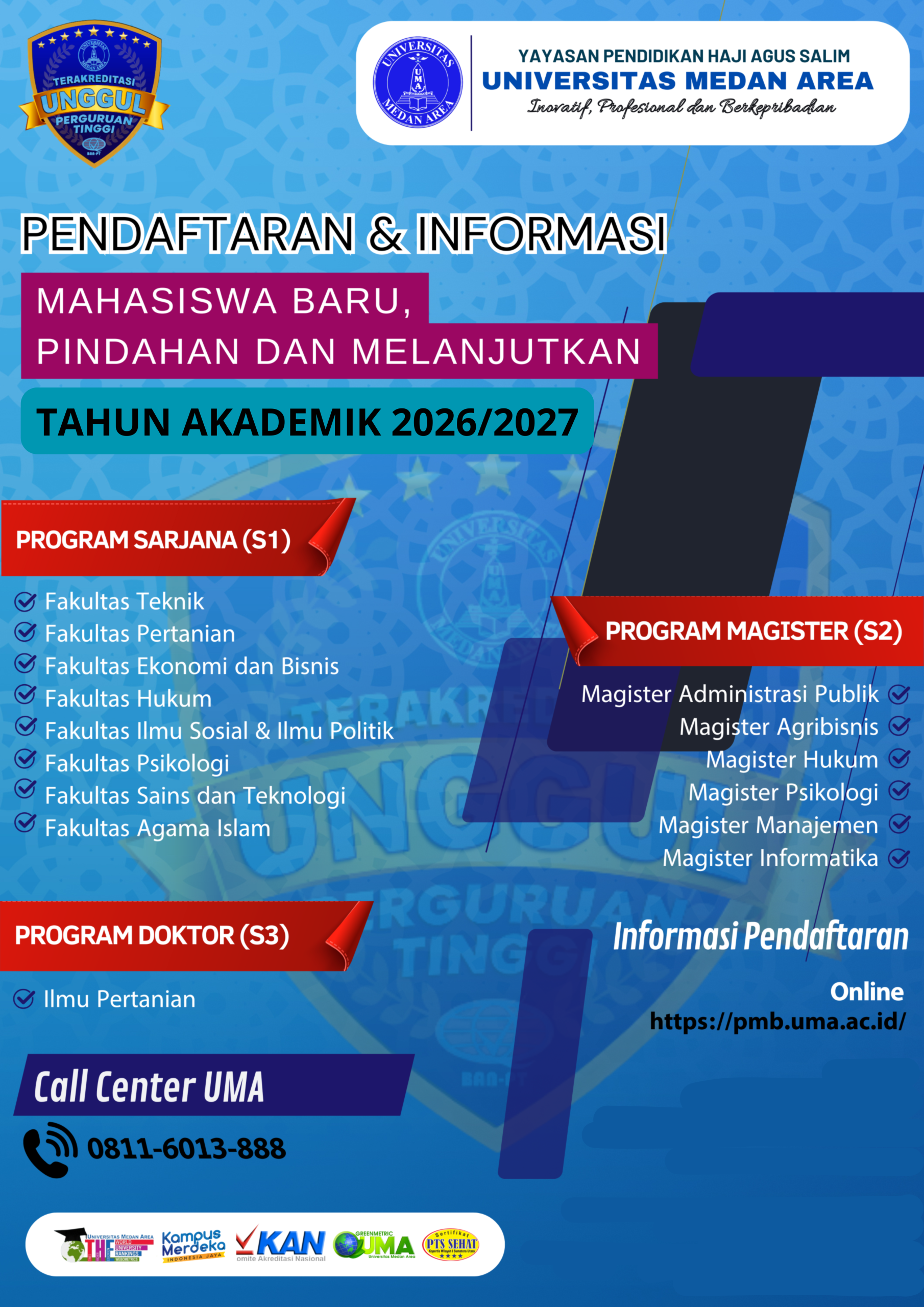
    • Program Sarjana
      • Mahasiswa Reguler
      • Mahasiswa Melanjutkan
      • Mahasiswa Asing
    • Program Pascasarjana
      • Program Magister (S2)
      • Program Doktor (S3)
      • Mahasiswa Asing
  • Kegiatan Mahasiswa
    • Kegiatan Dikti
    • Kegiatan UKM
  • ALUMNI
    • Tracer Study
    • Foto Wisuda
    • Laporan Tracer Study
  • PRESTASI
  • Galeri
      • Instagram
      • Youtube
Biro Pengembangan Inovasi Dan Karir Universitas Medan Area
    • BERANDA
    • TENTANG
      • Profil
      • Visi dan Misi
      • Tujuan dan Fungsi
      • Struktur Organisasi
      • Pimpinan Organisasi
      • Program Kerja
    • BERITA
      • Pengumuman
      • Kegiatan
      • Prestasi
    • KERJASAMA
    • LAYANAN & INFORMASI
      • Aplikasi
        • Sistem Informasi Layanan Kemahasiswaan & Alumni (SIKEMAL)
        • Academic Online Campus (AOC)
        • Daftar Ulang
        • Pendaftaran Mahasiswa Baru (PMB)
        • Aplikasi Pembayaran Online
      • Kesejahteraan Mahasiswa
        • Beasiswa
        • Asuransi
        • Pusat Pelayanan Kesehatan
      • Minat Bakat Mahasiswa
        • Pembinaan Prestasi Kemdikbud
        • Fasilitasi Kegiatan Prestasi Non Kemdikbud
      • Karir Mahasiswa
      • Administrasi Kemahasiswaan
        • Daftar Ulang Mahasiswa Lama
        • Cuti Akademik
        • Aktif Kembali Dari Cuti
        • Surat Keterangan Ijazah
        • Legalisir Ijazah
        • Surat Keterangan Keabsahan Ijazah Alumni S1 dan S2
      • Arsip Digital
        • Persyaratan & Prosedur Pelayanan Kemahasiswaan
        • Persyaratan & Prosedur Pelayanan Alumni
        • Formulir dan Format Surat
        • Sertifikat Akreditasi
        • Artikel
      • Help Desk BPIKA
    • PMB
      • Program Sarjana
        • Mahasiswa Reguler
        • Mahasiswa Melanjutkan
        • Mahasiswa Asing
      • Program Pascasarjana
        • Program Magister (S2)
        • Program Doktor (S3)
        • Mahasiswa Asing
    • Kegiatan Mahasiswa
      • Kegiatan Dikti
      • Kegiatan UKM
    • ALUMNI
      • Tracer Study
      • Foto Wisuda
      • Laporan Tracer Study
    • PRESTASI
    • Galeri
        • Instagram
        • Youtube

    Article

    Home » Blog » Tips in Creating Databases in Access 2021

    Tips in Creating Databases in Access 2021

    • Categories Article

    Is your small business going to use an Access database? While every other database follows a similar two-step procedure: first someone creates it and later people fill it with data, someone else does not have to do both tasks. In fact, at the small business level, many different individuals tend to work on both tasks. Here’s how to create a database and how to use it for your business.

    The easiest way to create a database is to select an existing one and modify it. Of course you will have to create a new database in order to use Access. To modify your existing database, select an existing table or view, right-click it, and then choose properties. On the General tab, you will see several things: current database name, current database owner, login name or password, database connection name, and database options. You will also see a few “bits” which are bits of information that other database objects have been allocated.

    In previous versions of Access, there was a file tab along the top navigation pane. Click on this file tab, which will take you to the file tab of your current database. On the file tab, you will see two pieces of information: a column for the current cell and the column that should be displayed next to that cell. The file name is the name of the database that you currently have access to. The file name is always blank, and any time you modify any database, that name is automatically changed as well.

    If you want to create a database without having to modify any existing data, you can create a new database without having to modify anything in the current database. To do this, first open the database you want to create, either by selecting “open” from the start menu, or by pressing Ctrl+O. In the database editor that you see in Explorer, choose the “new” option. A new blank database will be shown. Next, click on the “New” tab. A new window will appear with several pieces of information: the database name, database connection, database options, and the text that you want to place in database columns.

    Usually, all the databases in your computer are put into separate folders. You might have hundreds, if not thousands, of these folders. With the “New” button, you will be able to add a new database in the specified folder. When you click on the “Open” button, a new window will appear where you will be able to view the newly created databases.

    There are many ways how to create a database without modifying any existing data. One way is to use Microsoft’s Odbc tool which is included with Access. This allows you to create database objects with text and plain-text feature. You will need Microsoft’s.Net tool as well in order to create Visual Basic and VB applications.

    Another way is to use the odbc viewer to create databases. The odbc viewer can be installed with Access and once installed, it is easy to create new database and update the existing one. The odbc viewer will allow you to modify the existing data and file names as well as the relationships among the various tables.

    The final step is to click on the “Run” button at the top-right corner of the Access table browser. Now, you will be able to access your database and view all the data that you have entered. If necessary, you can also create a new database and insert all the required data. However, when you create a new database, you will see an error message saying that there is no data available for that database. To solve this problem, you should save your work and try again later on.
    • Share:
    admin

    Previous post

    Creating Beauty With Design
    January 11, 2021

    Next post

    An Alternative View on Development Economics
    January 11, 2021

    Instagram BPIKA

    Pencarian

    Berita Lainnya

    Universitas Medan Area Raih Peringkat Terbaik Versi Scimago Journal Rank
    28May2026
    Seminar Nasional Kebijakan Lingkungan Hidup: FH UMA dan Yayasan SENTRA Soroti Krisis Ekosistem Pesisir Sumatera Utara
    25May2026
    Fakultas Ekonomi dan Bisnis UMA Gelar Community Service Responsibility di Malaysia
    13May2026
    Magister Informatika UMA Perluas Jejaring Global Lewat MoA dengan UniMAP Malaysia
    09May2026
    logo-lke-uma

    Helpdesk

    [email protected]


    Kampus I

    Jalan Kolam Nomor 1 Medan Estate / Jalan Gedung PBSI, Medan 20223
    (061) 7360168. CALL CENTER : 0811-6013-888
    Fax : (061) 7368012
    [email protected]

    Kampus II

    Jalan Sei Serayu No. 70 A / Jalan Setia Budi No. 79 B, Medan 20112
    (061) 42402994, CALL CENTER : 0811-607-259
    Fax : (061) 8226331
    [email protected]

    © Copyright 2026 PDAI Universitas Medan Area